The first time a friend handed me his older Android phone and asked me to take a quick photo, I wasn’t expecting much. The stock camera felt flat. Colors looked washed out. Then he smiled and said, “Wait, open the other one.” He tapped a different camera icon, and the same scene suddenly looked sharper, cleaner, and far more balanced. That “other one” was a GCAM Port.
If you’ve been curious about GCAM APK features and MOD options, this guide breaks it all down in plain English. No fluff. Just the parts that actually matter for your daily photos.
Contents
What GCAM APK Actually Is?
GCAM is short for Google Camera, the official camera app made by Google for Pixel phones. The “PORT” or “APK” version is the same app, but tweaked by independent developers so it can run on non-Pixel devices like Samsung, Xiaomi, Realme, OnePlus, Motorola, and many more.
Here’s the thing. Google’s camera app isn’t powerful because of the Pixel hardware alone. It’s powerful because of computational photography, which is a fancy way of saying the software does most of the heavy lifting. According to Google’s AI research blog, the Pixel camera uses machine learning models like HDR+, Night Sight, and Super Res Zoom to combine multiple frames into one cleaner photo. GCAM PORT bring those same models to phones that were never meant to have them.
This is where it gets interesting. A budget Android phone running a good GCAM PORT can often outshoot its own stock camera in low light. Same sensor. Smarter software.
GCAM APK Port
GCAM ships with several shooting modes. Each one is tuned for a specific situation. Let me explain the ones you’ll actually use.
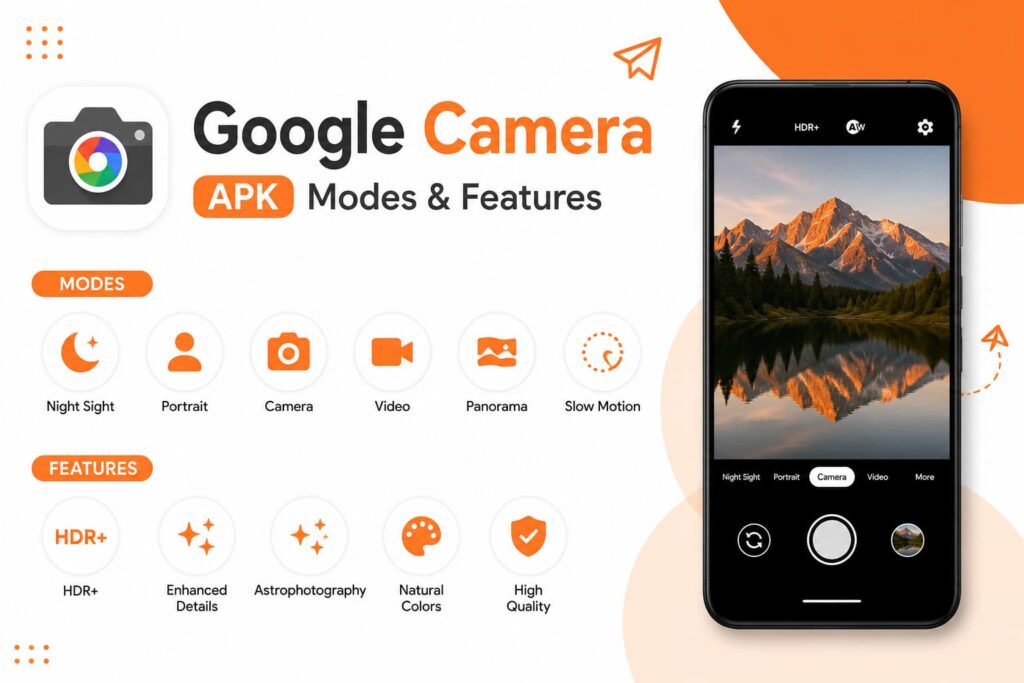
Photo Mode (Default)
This is your everyday shooting mode. It runs HDR+ in the background, which captures multiple frames in a split second and merges them. The result is balanced exposure, recovered highlights, and lifted shadows. A 2018 paper from Google Research titled “Burst photography for high dynamic range and low-light imaging on mobile cameras” explains this method in detail, and you can see the effect clearly even on cheap phones.
Night Sight
This is the mode that feels like magic the first time you use it. Night Sight can pull a usable photo out of nearly pitch-black scenes. The exposure usually runs between 3 and 6 seconds. You hold the phone still, and GCAM stacks multiple frames into one bright, detailed image.
A small tip from my own testing: rest the phone on a flat surface (a table, a railing, even a stack of books) and the sharpness improves a lot.
Portrait Mode
Portrait Mode uses depth estimation from a neural network. The edge detection here is sharper than what most stock apps offer, especially around tricky areas like hair, glasses, and pet fur. You can also adjust the blur level after the shot, which not every stock camera lets you do.
Astrophotography Mode
On supported phones, Night Sight can shift into Astrophotography Mode automatically when it detects a stable, very dark scene. Stars actually show up. It’s wild the first time you see it work.
Top Shot
GCAM captures multiple frames around the moment you press the shutter, then helps you pick the best one. Great for kids, pets, or any scene where timing matters.
Slow Motion and Time Lapse
These are tucked into the video tab. They work cleanly on most modern GCAM builds.
Features
GCAM APK is a modified version of the stock Google Camera app found on Pixel devices. It unlocks advanced camera capabilities that aren’t available out of the box on most Android phones.
Some key features worth knowing:
HDR+ Processing
This is the heart of GCAM. It captures a quick burst of slightly different exposures and merges them into one photo. Highlights stop blowing out. Shadows stop crushing. You get a cleaner image with way more detail.
Super Res Zoom
Most phones lose detail the moment you zoom past 2x. GCAM takes a different approach. It uses tiny hand movements to capture slightly shifted frames, then combines them into a sharper high-resolution image. According to Google’s research blog on Super Res Zoom, the technique can match or even exceed the quality of optical 2x zoom in many cases.
RAW (DNG) Capture
If you edit photos in Lightroom or Snapseed, this is huge. RAW files preserve a lot more detail in shadows and highlights, giving you real flexibility when editing.
Custom Config Files (XML)
This is the secret sauce of the GCAM world. Independent developers create XML configs tuned for specific phone models. You drop the file into the right folder, load it inside GCAM, and your camera quality jumps almost instantly.
Based on what I’ve seen across XDA Developers and the GCam community, the right config for your exact model often matters more than the GCAM version itself.
Motion Photos
Captures a short clip around your photo, similar to Apple’s Live Photos.
Gesture and Volume Controls
You can map the volume buttons to shutter, zoom, or focus. Small thing, but very handy.
GCAM Port : Why It Exists
The stock Google Camera app only installs cleanly on Pixel phones. Modders in the community (developers like BSG, Urnyx05, Wichaya, Greatness, and others) rewrite parts of the app so it works on different chipsets, sensors, and Android skins.
This means:
- Samsung phones can use GCAM via specific MOD builds
- Xiaomi, Redmi, and POCO phones get tuned versions
- Realme, OnePlus, and Motorola each have community-tested builds
- Even older Android 11 and Android 12 devices have working MODs
This isn’t confirmed for every single phone model on earth, but coverage is wide. If your phone runs Android 12 or higher, there’s almost certainly a GCAM MOD that works on it.
How to Install GCAM APK (Quick Steps)
You’ve got this. It’s easier than it sounds.
- Check your Android version. Most modern GCAM MODs need Android 12 or higher.
- Enable Unknown Sources. Settings → Apps → Special Access → Install Unknown Apps. Allow your browser.
- Download the APK from a trusted source like Celsoazevedo’s GCam Hub or the XDA Developers forum. File size is usually around 250 MB (about 0.25 GB).
- Tap the APK to install. Wait a few seconds.
- Grant camera, microphone, and storage permissions.
- (Optional but worth it) Drop a config file made for your exact phone into
/Internal Storage/GCam/Configs7/, then load it inside the app by double-tapping near the shutter button.
Once you do this once, it becomes second nature.
FAQs
What devices are compatible with GCAM APK?
Most Android phones running Android 12 and above. Snapdragon-powered phones usually run GCAM smoother than Exynos or MediaTek variants, but most chipsets work fine with the right MOD and config.
Is GCAM APK safe to use?
GCAM MODs from trusted sources like Celsoazevedo and XDA Developers are widely used and community-tested. Avoid random websites with pop-up ads. Stick to the well-known modder names.
Are there any in-app purchases in GCAM APK?
No. GCAM and its MODs are free. There are no in-app purchases.
How often does GCAM APK receive updates?
Independent developers update their builds regularly, often within days of a new official Google Camera release on Pixel.
Will GCAM replace my stock camera app?
No. It installs as a separate app. Your stock camera stays exactly where it is.
My Take
If your stock camera has been disappointing in low light, or you want better portraits, sharper zoom, or cleaner detail, GCAM APK is one of the highest-value free upgrades you can give your phone. No cost. No root needed. Just better photos.
Pair the right MOD with a config tuned for your model, and your phone basically gets a free camera upgrade. I’ve seen older mid-range Android phones produce shots that look surprisingly close to flagship-level output.
Go ahead, install a GCAM APK that matches your device, load a good config, and shoot a few test photos tonight. You’ll see the difference straight away.
